Create a new virtual machine and install Ubuntu from the ISO. Make sure the disk is at least 100 GB in size.
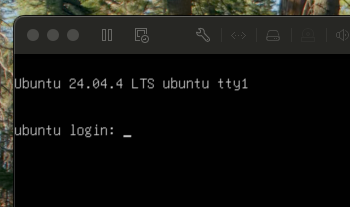
Upon reboot, you see a black console with the Ubuntu version at the top, as shown below.
Log in with the username and password you chose during installation.
Then execute this command:
sudo apt update
Execute this command:
sudo apt install ubuntu-desktop
When the installation stops, execute this command:
sudo reboot
It may take a few minutes to reboot, and it may take several minutes, or a second reboot, to see the graphical desktop after logging in.
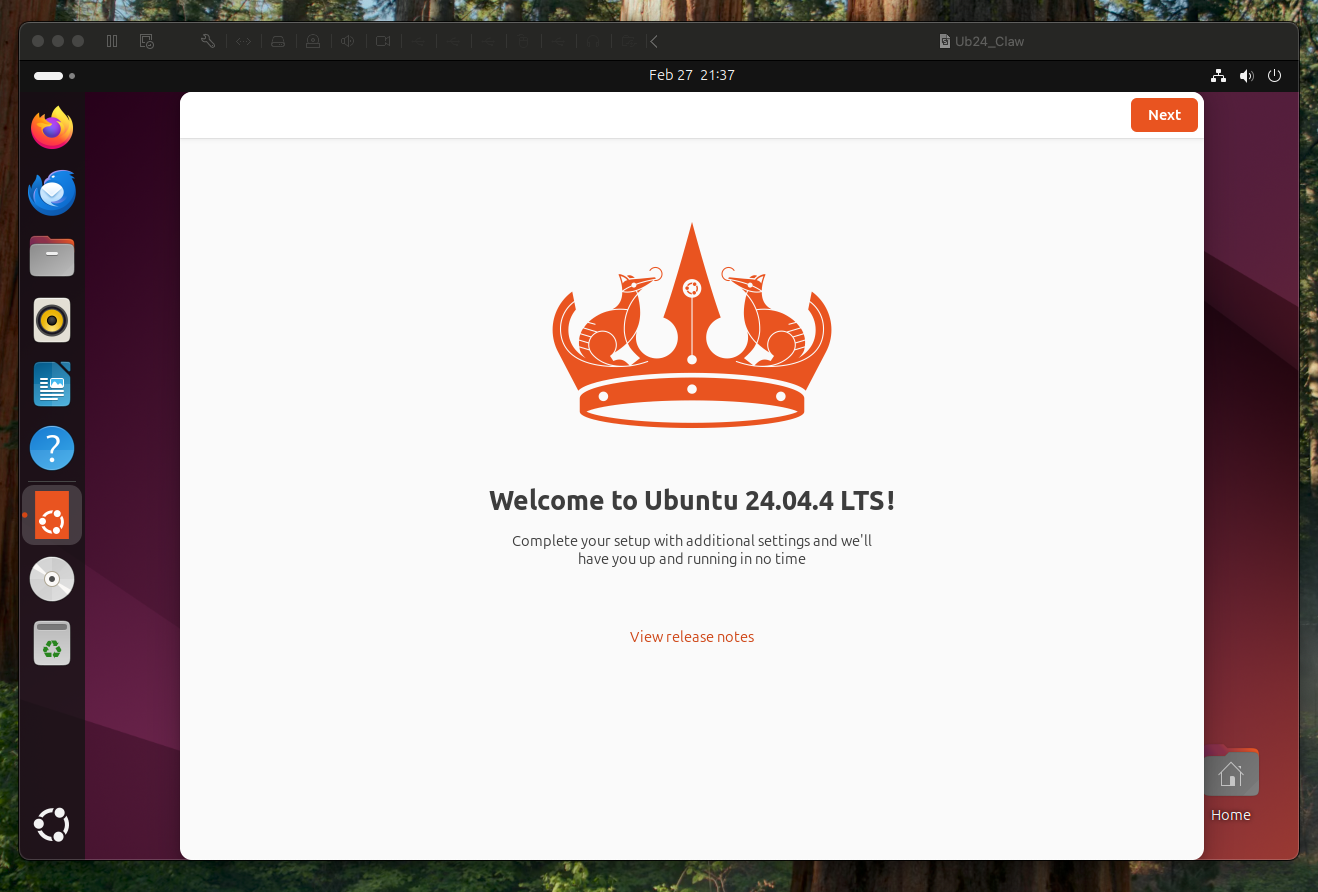
On the Ubuntu desktop, click the button at the lower left with a lumpy circle icon.
Search for Term.
Open Terminal, and execute these commands, one at a time:
sudo apt autoremove open-vm-tools -y
sudo apt install open-vm-tools-desktop -y
sudo apt install open-vm-tools -y
sudo reboot
To fix that, execute this command:
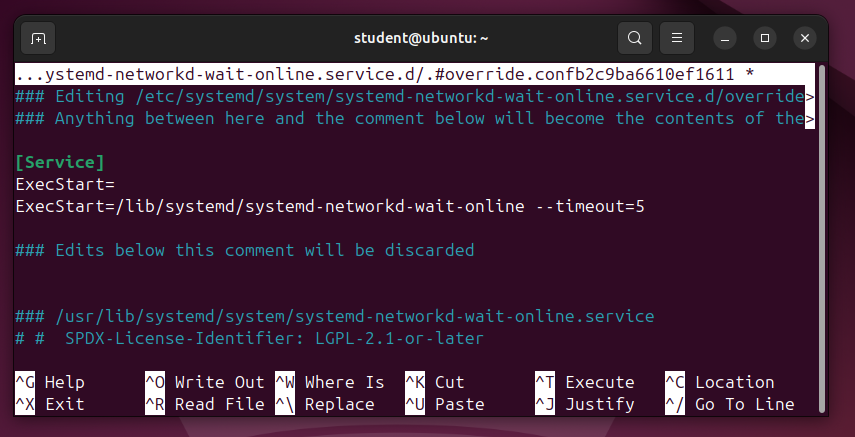
sudo systemctl edit systemd-networkd-wait-online.service
[Service]
ExecStart=
ExecStart=/lib/systemd/systemd-networkd-wait-online --timeout=5
To prevent that, on the Ubuntu desktop, click the button at the lower left with a lumpy circle icon.
Search for Settings.
Open Settings. In the left pane, click Power.
Change "Screen Blank" to Never.
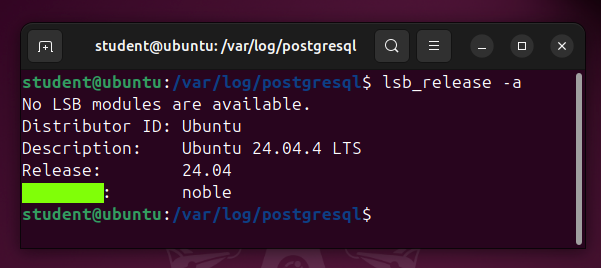
Flag ED 33.1: Release (10 pts)
Execute this command:The flag is covered by a green rectangle in the image below.
Posted 3-1-26
Link to vmware download instructions added 3-2-26
Image of console and disk size instruction added 3-3-26