Here are the risk mitigation decisions I made, and why.
If you have a Mac M1 or later, you have an ARM processor. Download the Ubuntu Desktop ISO installer file here and install the OS into a virtual machine from that.
Make sure the virtual hard disk is at least 100 GB in size.
Log in with Google, or create an account and log in with it.
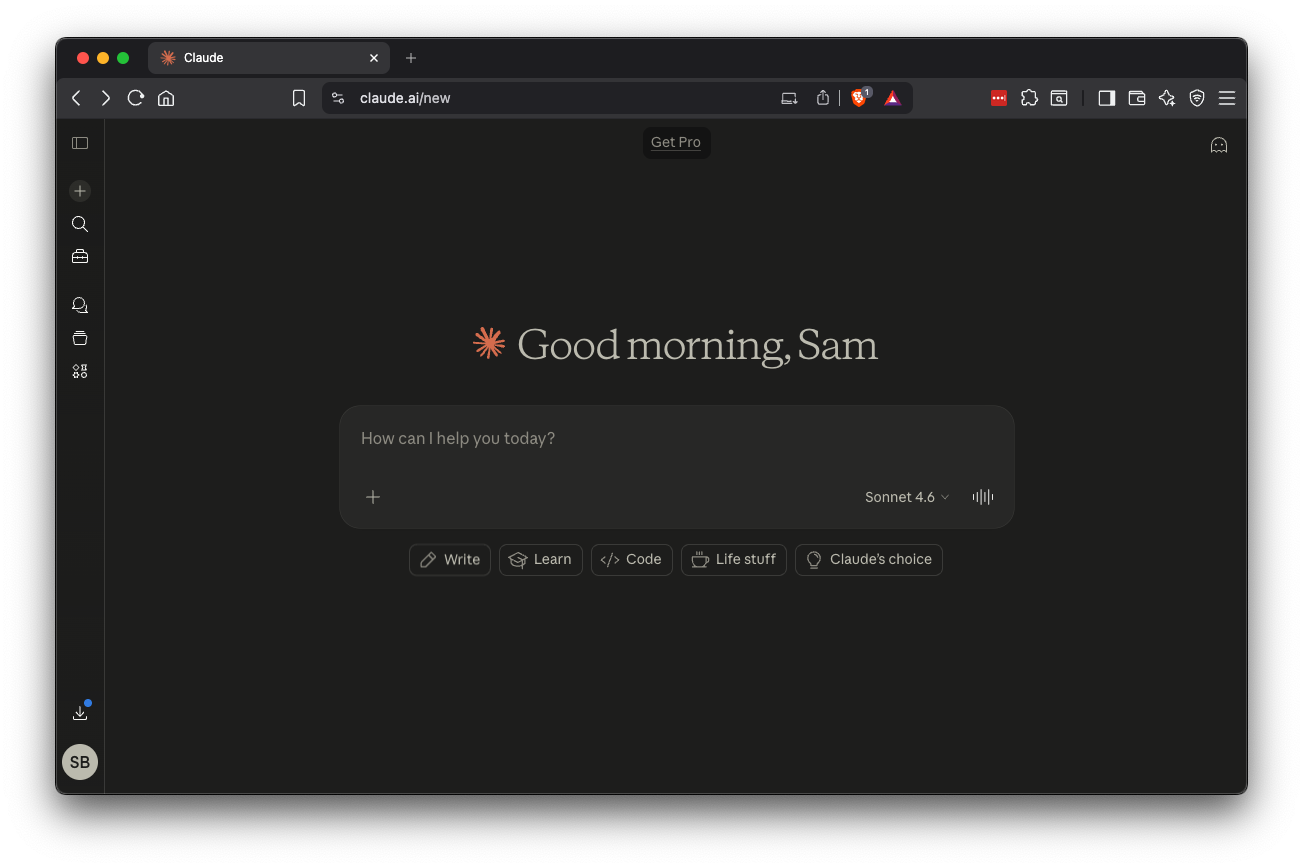
The Claude page opens, as shown below.
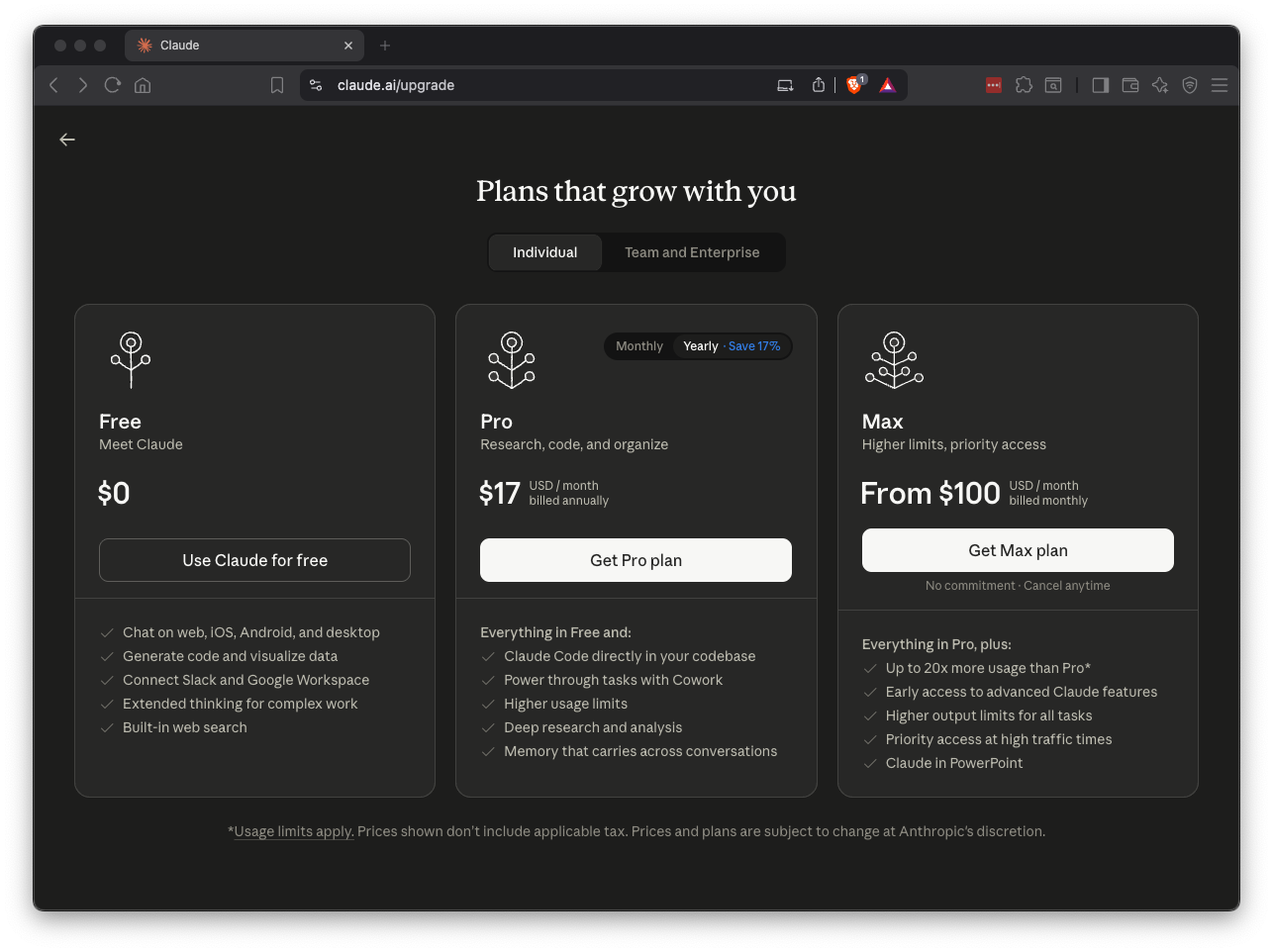
Purchase a month of the Pro plan, which cost $20 when I did it in April, 2026, as shown below.
Search for Settings and open it.
On the left side, click Power.
Set Screen Blank to Never.
Close Settings. On your Ubuntu machine, in a Terminal, execute these commands:
sudo apt update
sudo apt install curl -y
sudo apt install open-vm-tools-desktop -y
sudo reboot
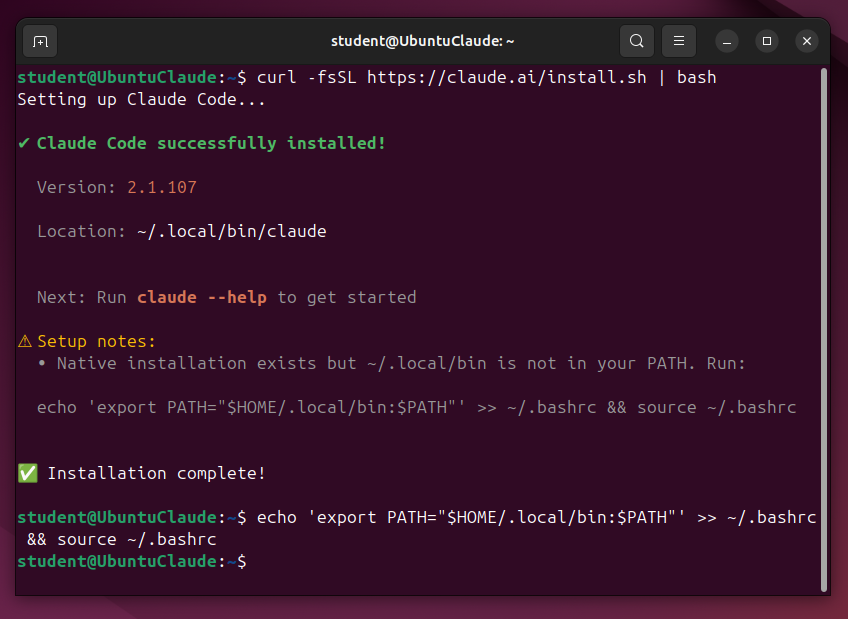
curl -fsSL https://claude.ai/install.sh | bash
sudo apt install git -y
git clone https://github.com/danielmiessler/Personal_AI_Infrastructure.git
cd Personal_AI_Infrastructure/Releases/v4.0.3
cp -r .claude ~/ && cd ~/.claude && bash install.sh
Follow along and answer them, as shown below.
I could not get sound working in my VM, and trying to connect it restarted the machine, so I ignored the voice stuff for now.
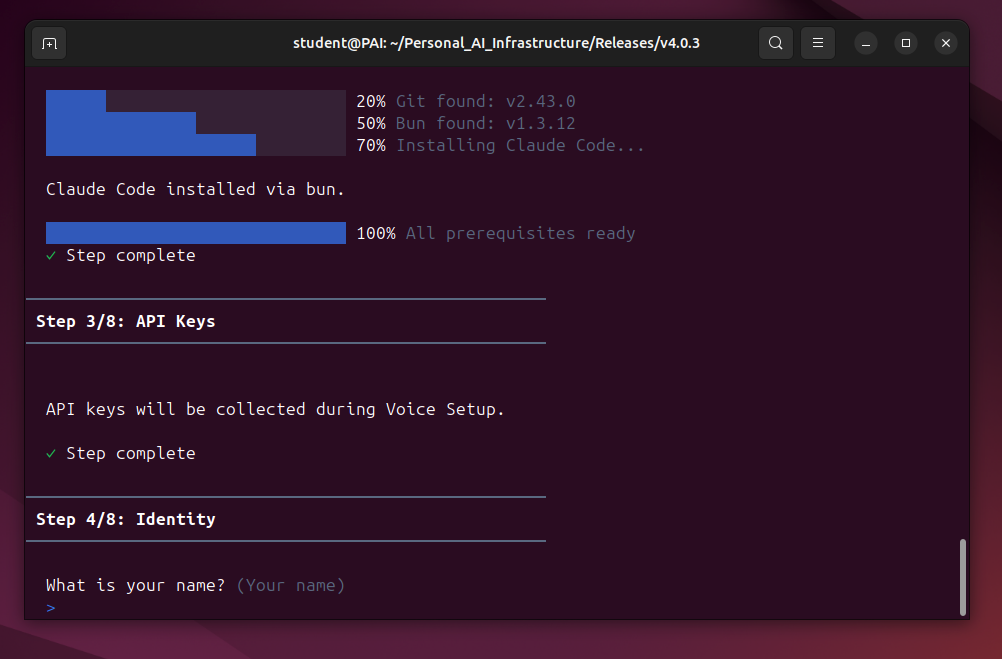
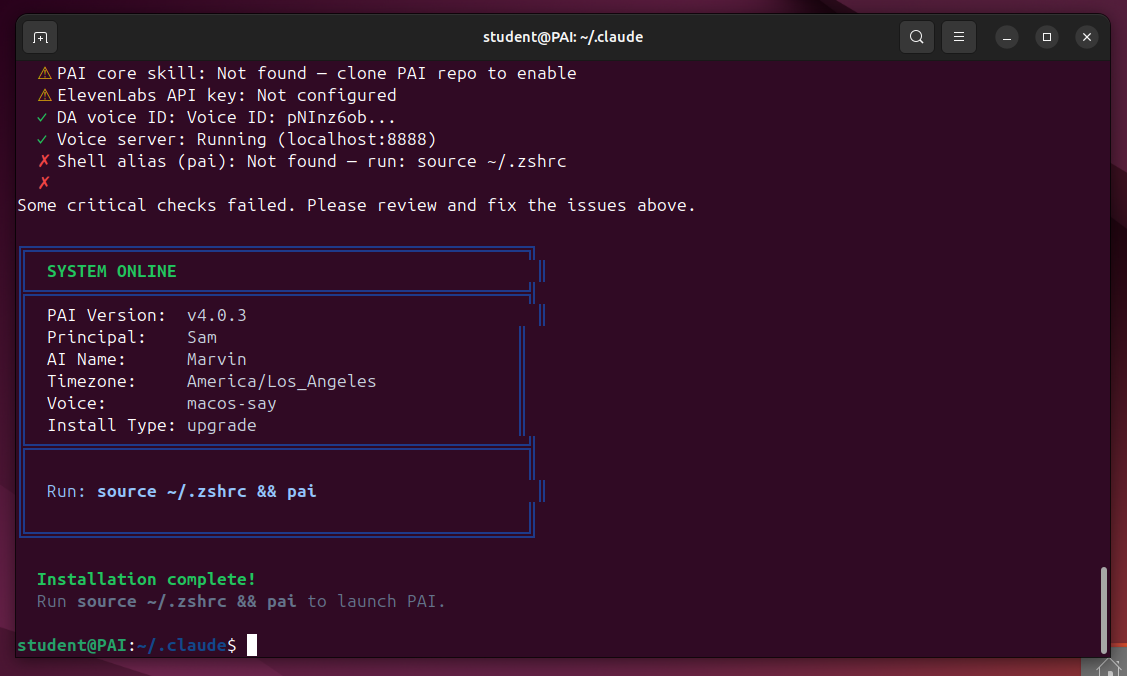
To fix that, and a Claude problem, execute:
echo 'export PATH="$HOME/.local/bin:$PATH"' >> ~/.bashrc
source ~/.bashrc
pai
Log into Claude Code when you are prompted to.
Flag ML 190.1: PAI Home Page (10 pts)
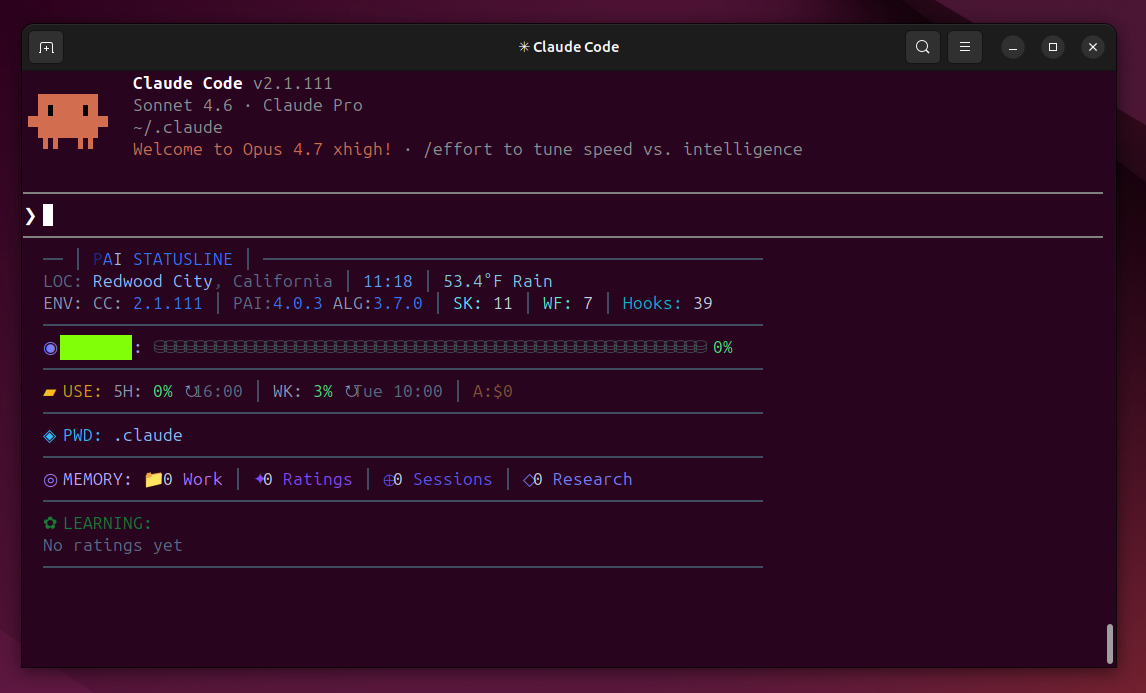
The PAI home page opens, as shown below.The flag is covered by a green rectangle in the image below.
Then I wrote a few paragraphs, explaining what my job is, and what emails are important: inquiries from students, anything from my supervisors, and things requiring action from me.
I asked my PAI to email me a summary each morning of the important emails.
The first two summaries had some errors, important messages skipped or spam marked as important, but I just told PAI what the problems were the same way I'd tell a human assistant, and it fixed them.
Now it works like a charm--today it picked out the four messages that mattered out of 84 messages, and made it easy for me to handle them.
I'm now on top of my emails for the first time in years!
Posted 4-16-26
Points changed to 20 4-23-26
"How I'm Using It" and "Risk Analysis" sections added 4-28-26