In a Web browser, go to: https://claude.ai/download. Download and install the version of Claude for Desktop appropriate for your OS.
Launch the Claude app, as shown below.
Log in with a Google account.
Skip the "Quick entry" demonstration and click through the introductry screens.
At the "Meet Sonnet 4.5--Claude at its best" box, click "Start chatting".
Ask this question:
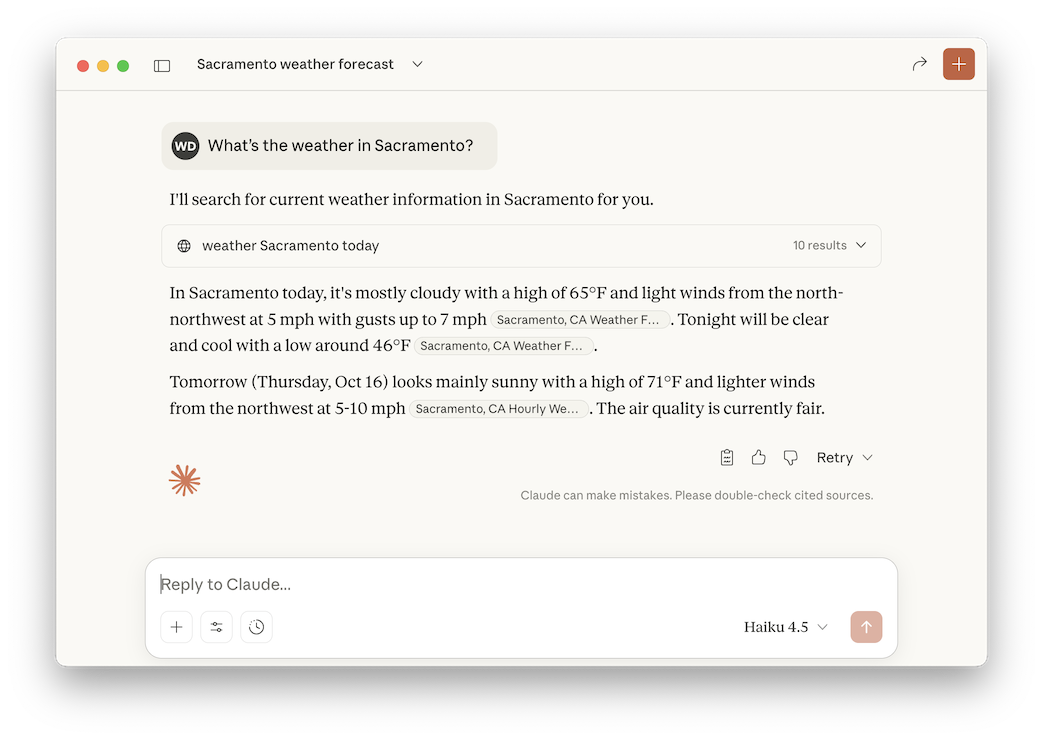
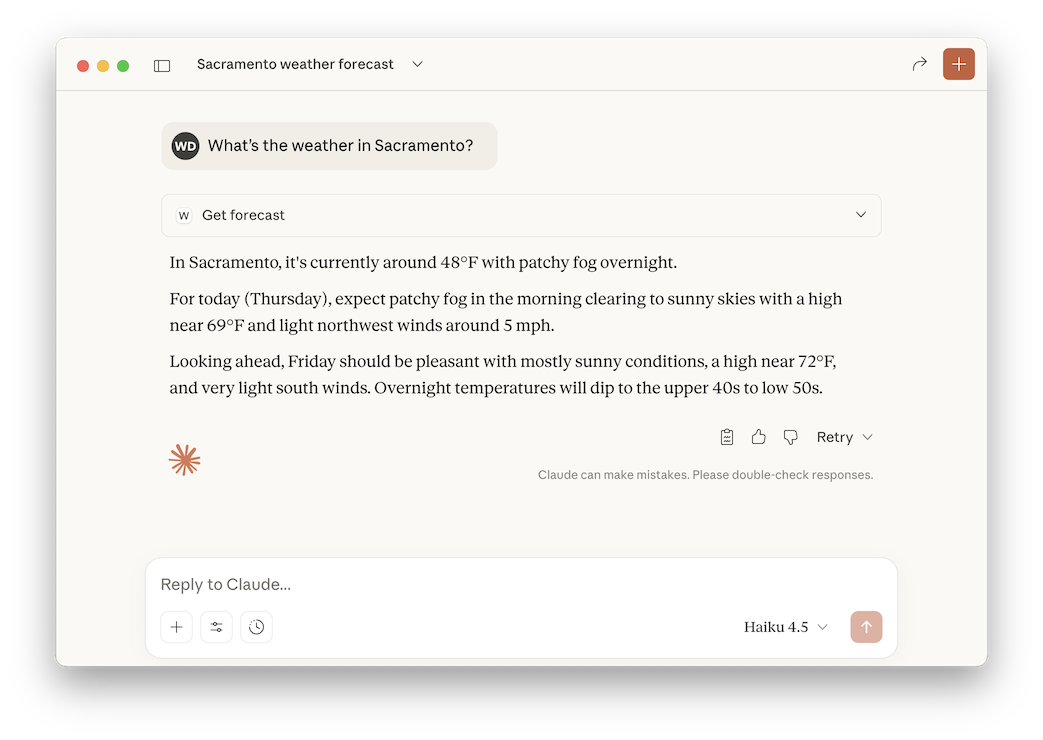
What's the weather in Sacramento?Claude answers the question with information it found somewhere on the Web, as shown below.
Follow the instructions in this section:
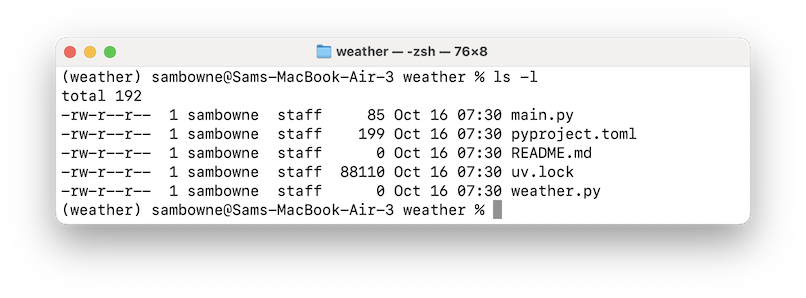
Set up your environmentUse the "ls -l" or "dir" command to view the files you created. You should see a "weather.py" file, with size 0, as shown below.
The code is in four blocks on that page:
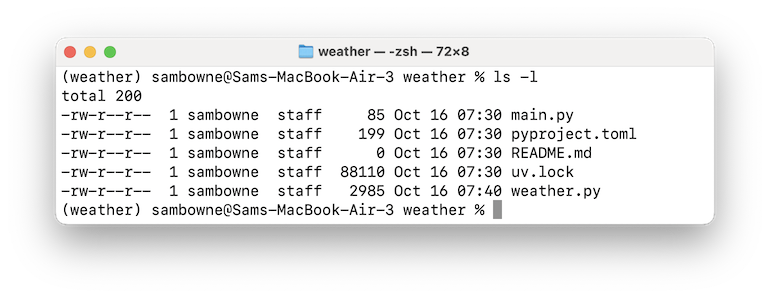
Use the "ls -l" or "dir" command to view the files you created. The "weather.py" file is now several kilobytes in size, as shown below.
uv run weather.py
Press Ctrl+C twice to stop the server.
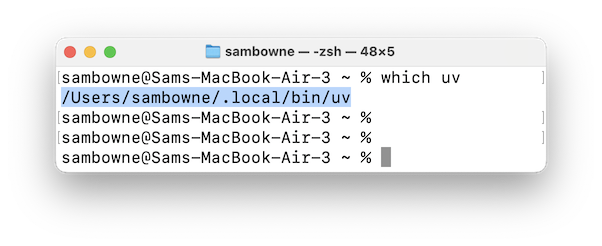
The path you need is highlighted in the image below.
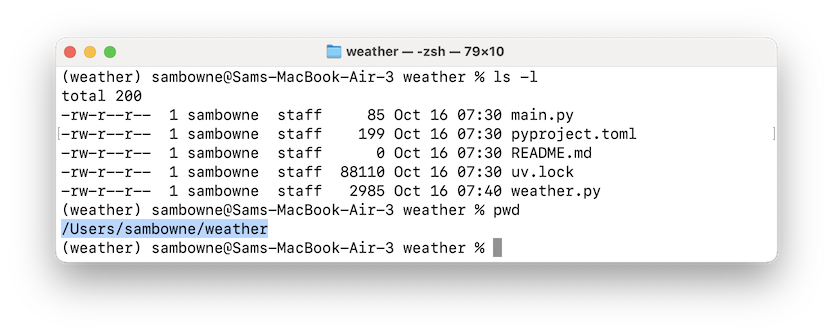
Then execute pwd on macOS/Linux or cd on Windows.
The path you need is highlighted in the image below.
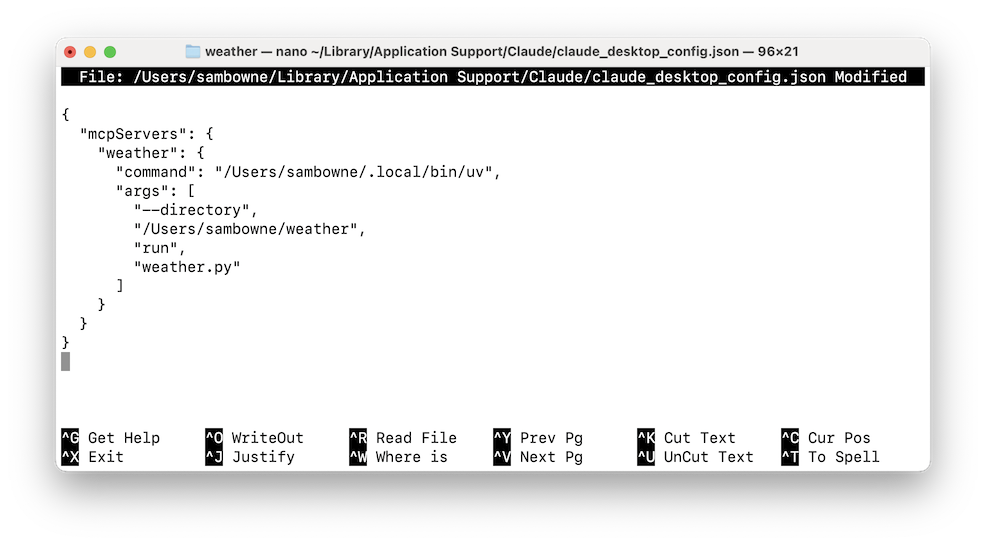
On a Mac, you'll execute this command to create the file you need:
nano ~/Library/Application\ Support/Claude/claude_desktop_config.json
Close Claude for Desktop and restart it.
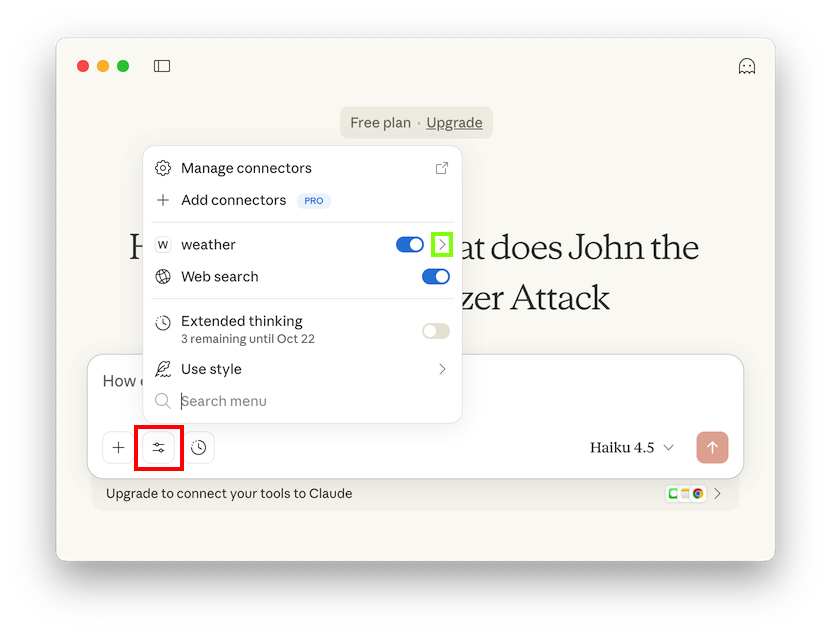
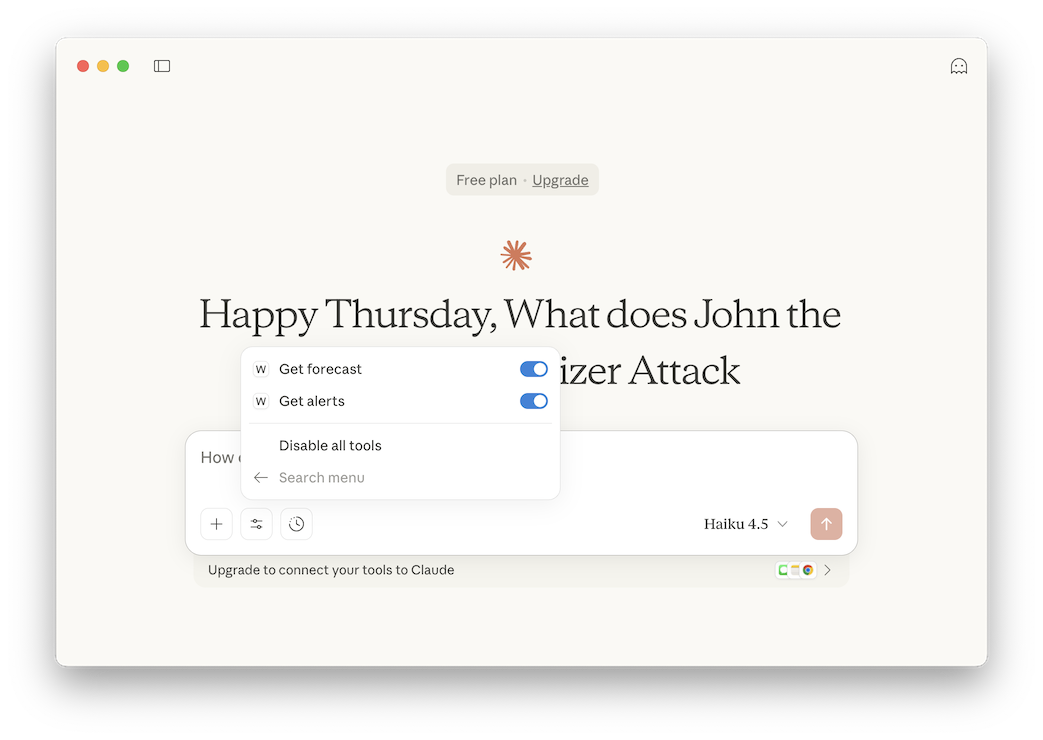
Click the "Search and tools" button, outlined in red in the image below.
Then click the right-arrow icon next to "weather", outlined in green in the image below.
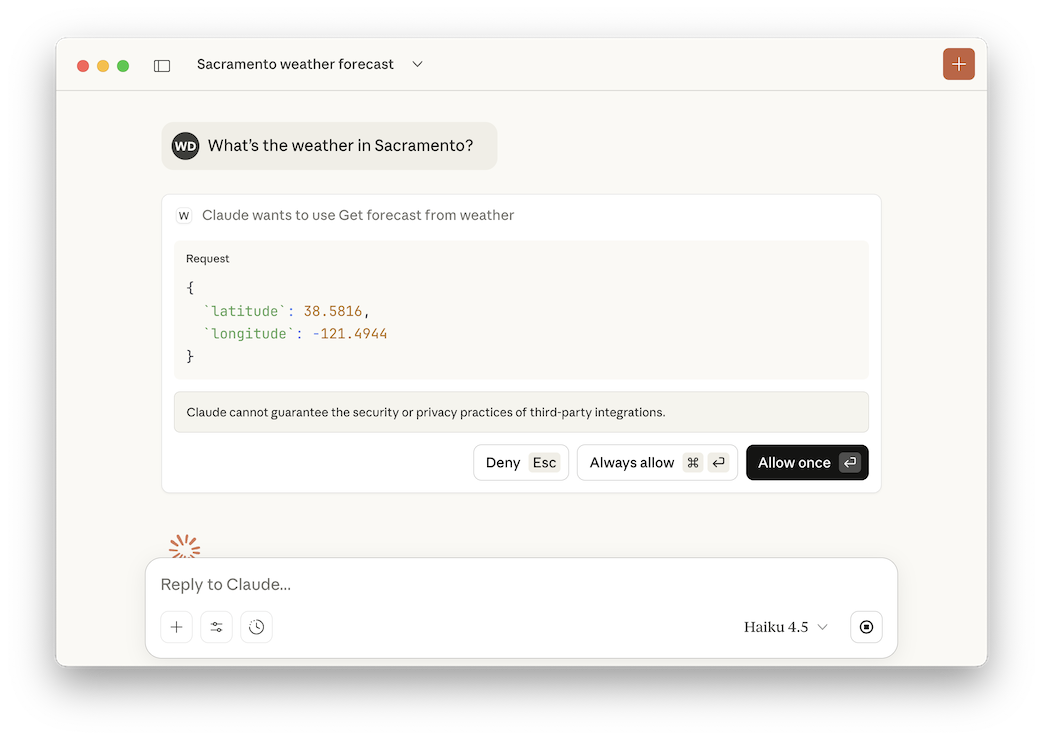
What's the weather in Sacramento?Claude asks whether it's allowed to use the weather tool, as shown below.
Click "Allow once".
Flag ML 133.1: Alerts (15 pts)
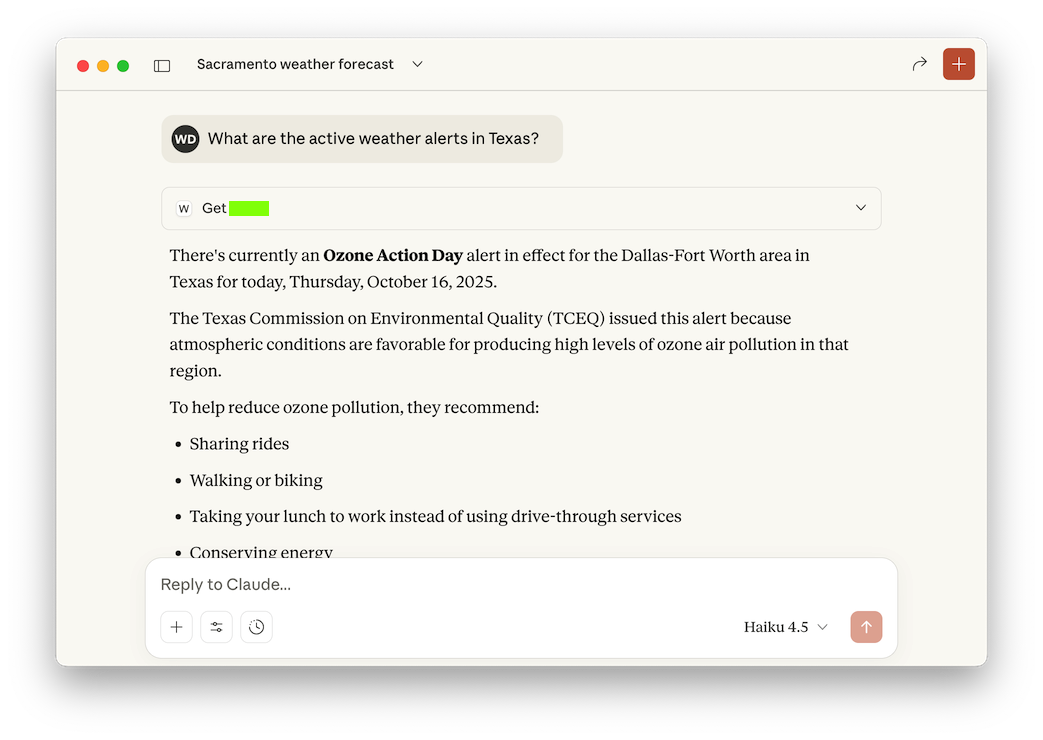
Ask this question:What are the active weather alerts in Texas?Claude asks whether it's allowed to use the weather tool.Click "Allow once".
The flag is covered by a rectangle in the image below.
Posted 10-16-25