PMA 41: Windows 11 with Analysis Tools
Right-click the hash1.7z file and click "Show more options".
Click 7-Zip, "Extract to "hash1\"".
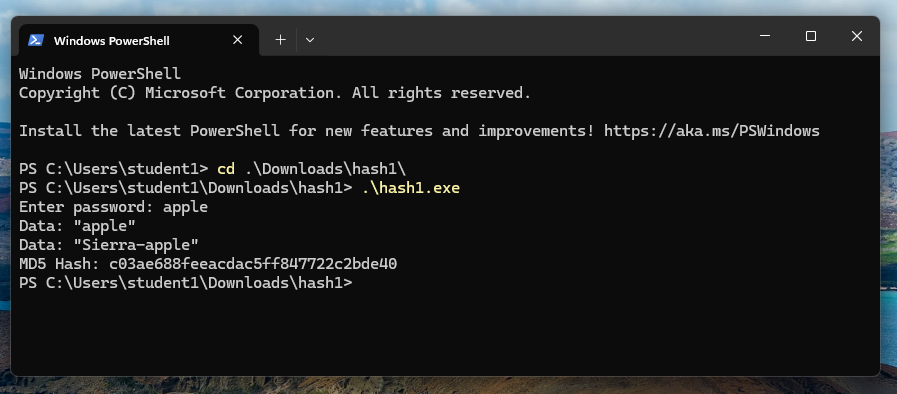
In a Terminal window, execute these commands:
cd .\Downloads\hash1\
.\hash1.exe
As shown below, the program shows an MD5 hash value
ODBCScript Sourceforge pageDownload the ODbgScript.1.82.rar file.
Open File Explorer and navigate to your Downloads folder. Right-click the ODbgScript.1.82.rar file and click "Show more options".
Alternate Download Source
If that site is unavailable, you can download the file here.
Click 7-Zip, "Extract to "ODBCScript 1.82\"".
Open the "ODBCScript 1.82" folder. Right-click OdbcScript.dll and click Copy.
Navigate to C:\Tools and paste in the OdbcScript.dll file.
Enter this text into Notepad, as shown below.
log "Hello, World!"
log eip
msg "All done!"
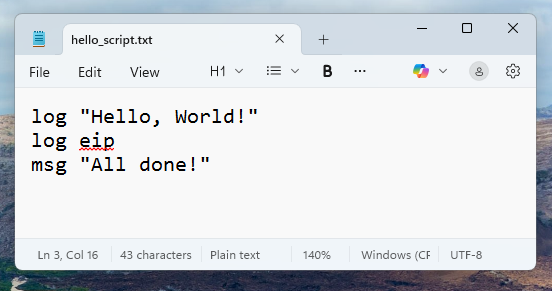
Save the file in your Documents folder with a filename of hello_script.txt
Run OllyDbg as Administrator. Open hash1.exe.
At the top left, from the menu bar, click Plugins, ODbgScript, "Run Script...".
Navigate to your Documents folder and double-click hello_script.txt
At the top left, from the menu bar, click Plugins, ODbgScript, "Log Window...".
As shown below, there are two entries in the Log Window, and one pop-up message box.
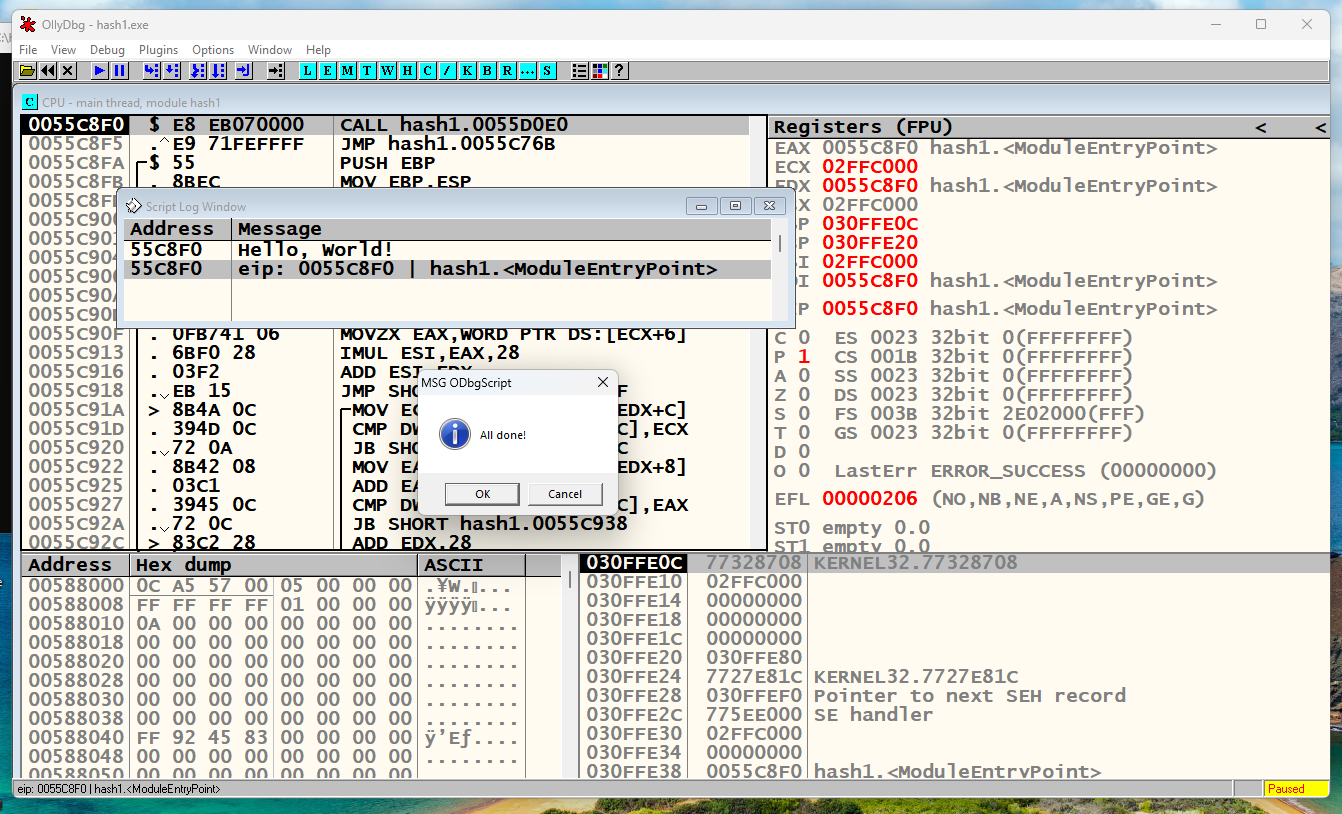
Click OK to close the message box.
In the Script Log Window, right-click and click "Clear window".
Notice these two new features:
log eip
GCI eip, COMMAND
log $RESULT

log esp
log [esp]
log [esp + 4]
log [esp + 8]
log [esp + 12]
log [esp + 16]
msg "All done!"
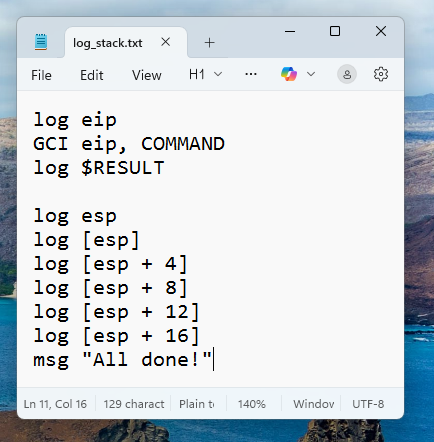
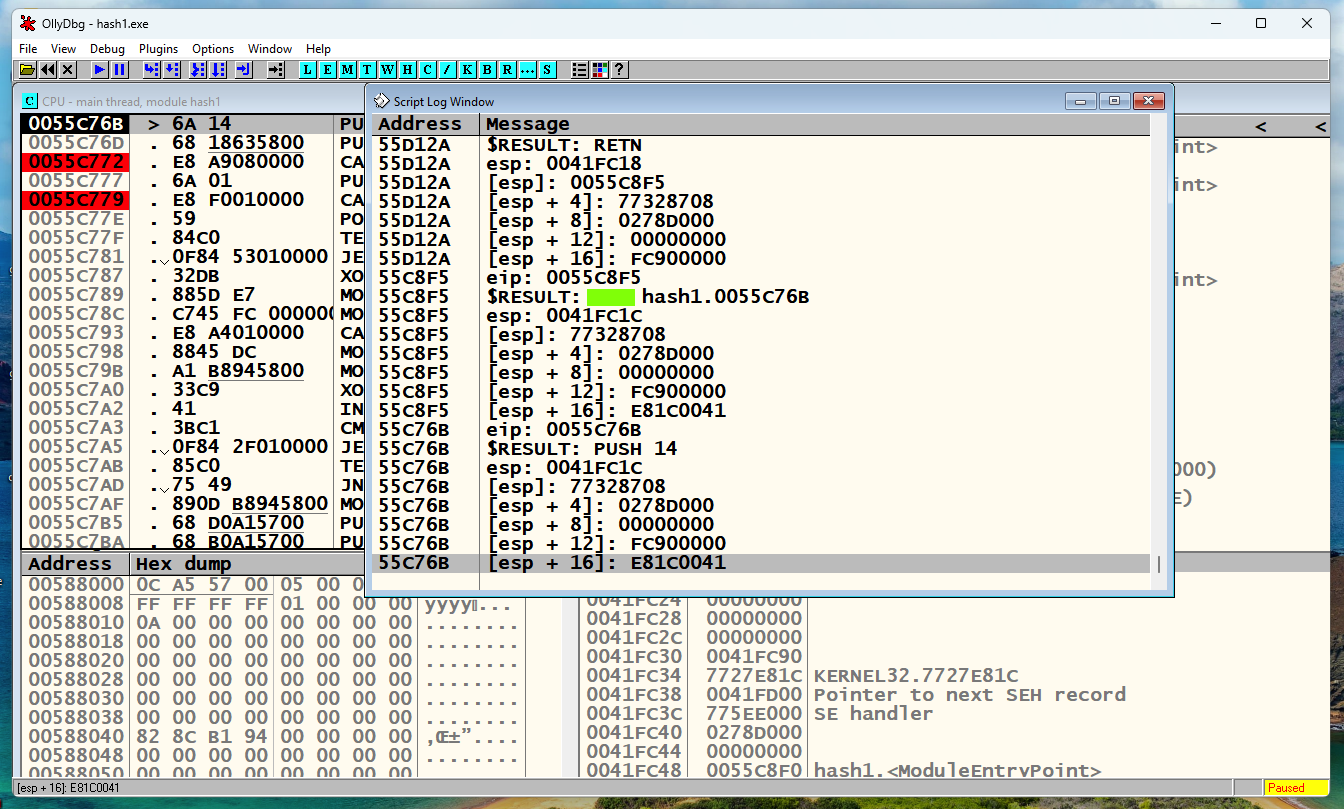
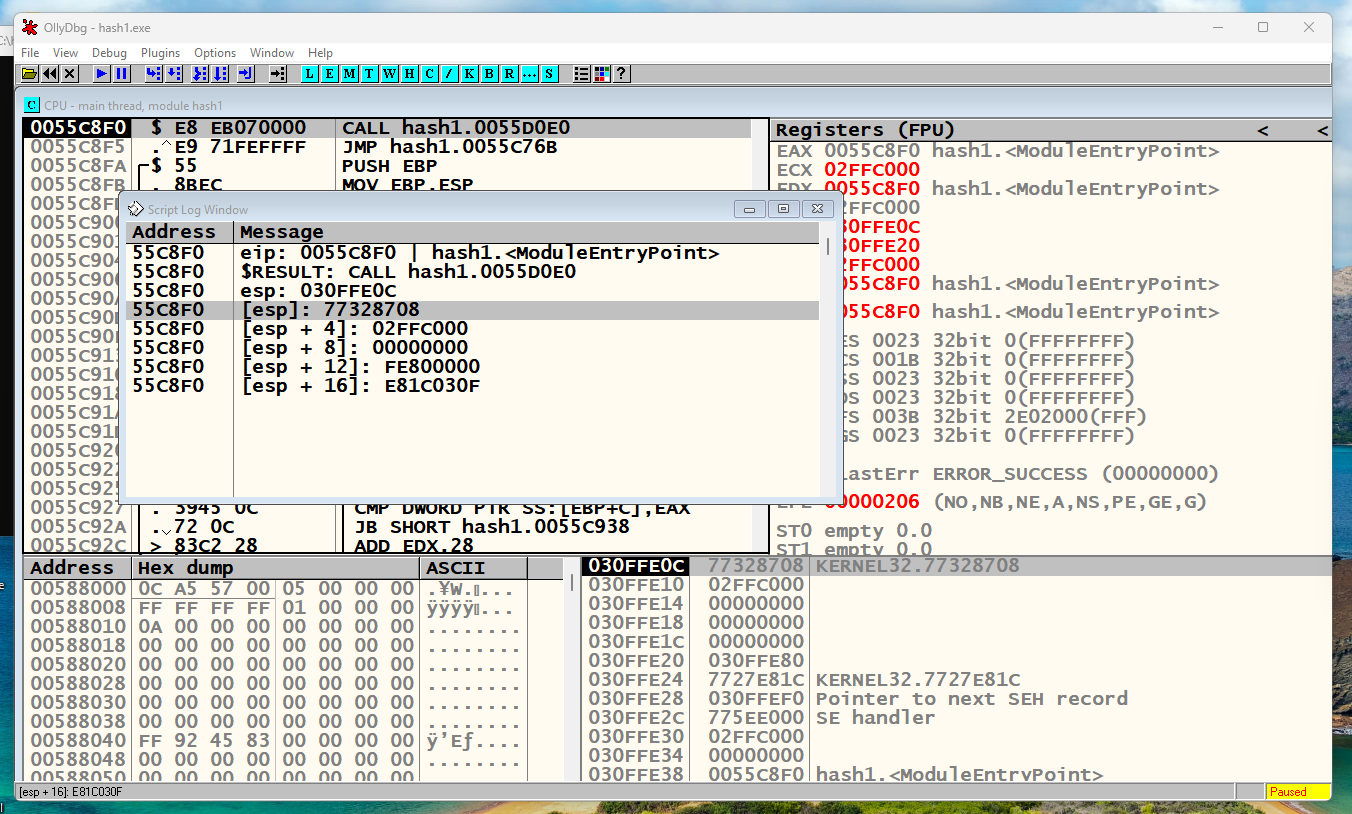
Run this script. It creates a series of log entries, recording the current instruction and the first four stack values, as shown below.
Notice these two new features:
// Define variables
var count
MOV count, 0

// Label to mark the start of the loop
LOOP_START:

    esti
    log eip
    GCI eip, COMMAND
    log $RESULT

    log esp
    log [esp]
    log [esp + 4]
    log [esp + 8]
    log [esp + 12]
    log [esp + 16]

    INC count
    CMP count, 10
    JNE LOOP_START

msg "All done!"
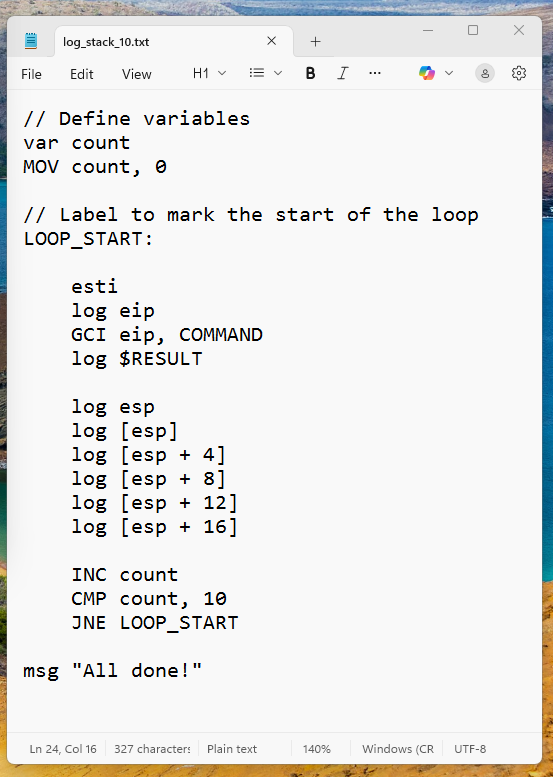
Run this script. It creates a series of log entries, recording the current instruction and the first four stack values, as shown below.
PMA 407.1: Instruction (10 pts)
The flag is covered by a green box in the image below.
Run your script.
At the top left, from the menu bar, click Debug, Restart.
Your script runs automatically.
In the Command Prompt window running the hash1 program, type in a password of AAAAAAAA and press Enter.
The program calculates the hash, as shown below.
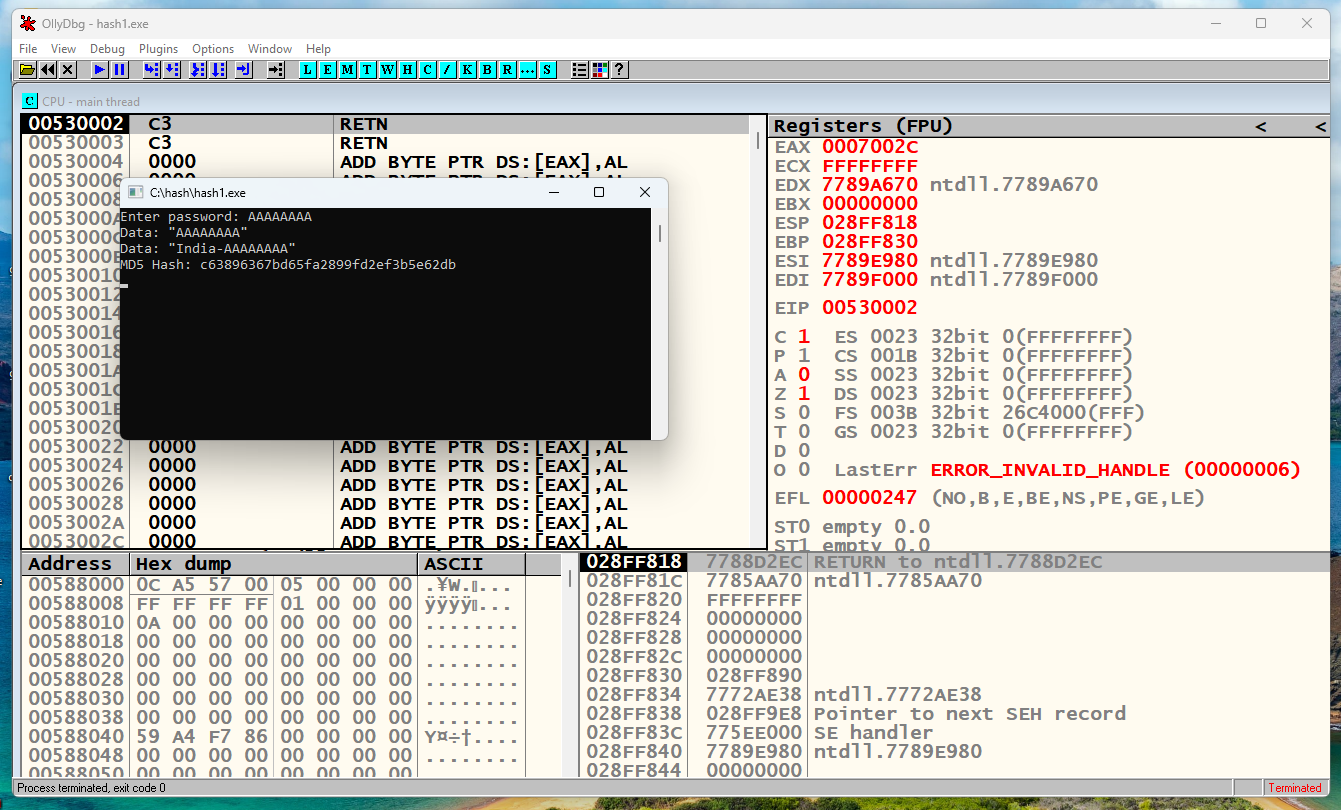
At the top left, from the menu bar, click Plugins, ODbgScript, "Log Window...".
The log window contains a lot of data.
Right-click in the log window and click Find....
Search for 41414141, which is the hex version of "AAAA", as shown below.
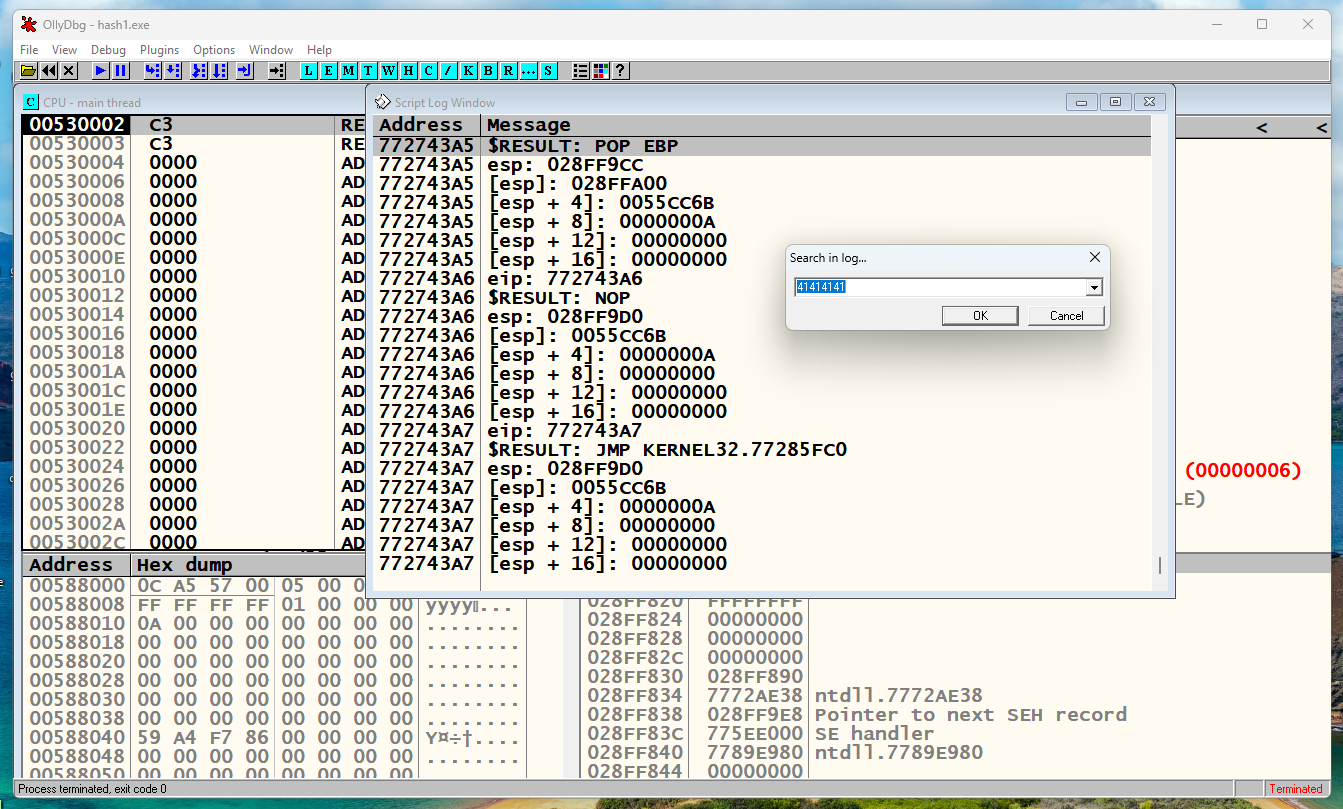
Nothing was found. This is because the password is not stored directly on the stack. Instead, a pointer is stored to a string containing the password.
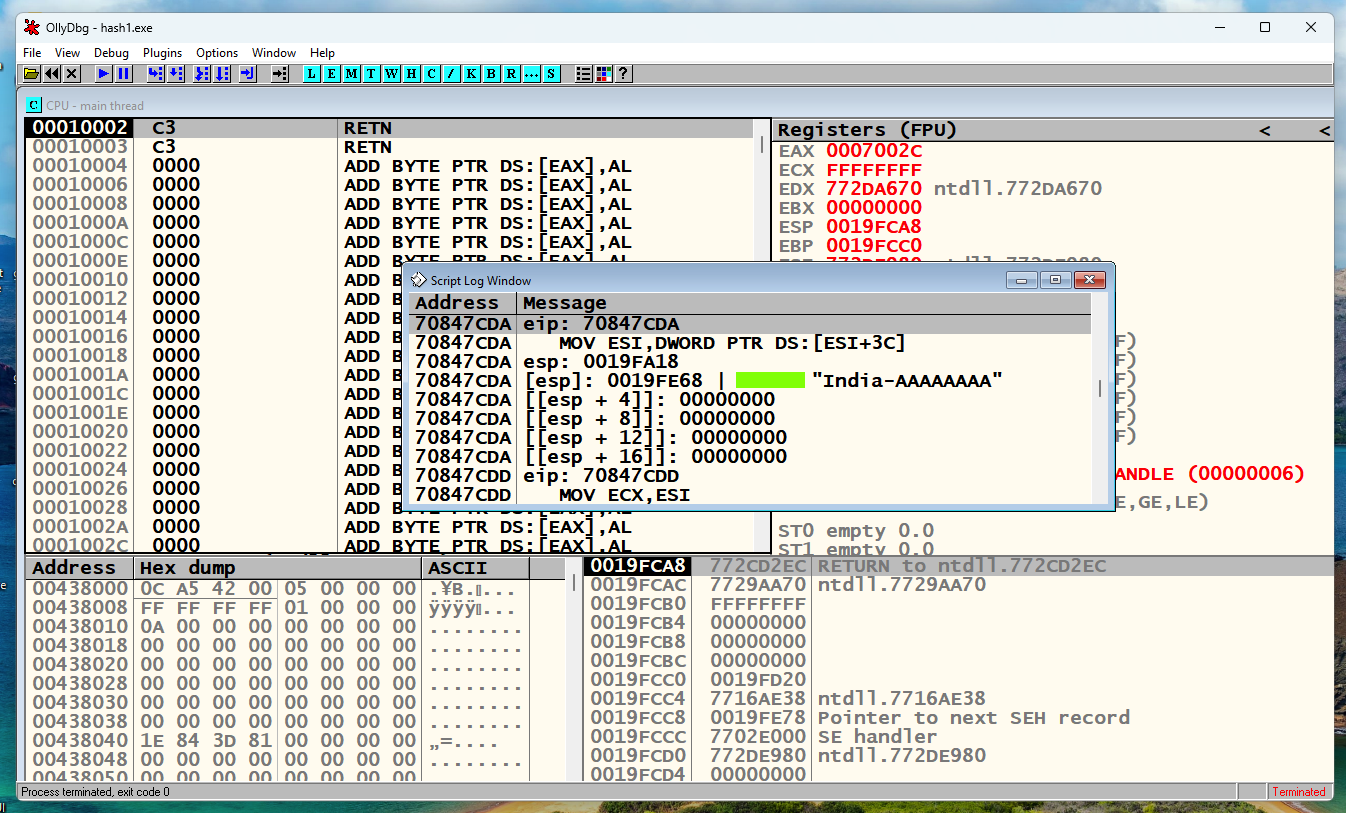
To find the password, change the log statements referring to the stack to have double square brackets, as shown below.
I also had to add the two highlighted lines to make the script enter the "bcryptpr" module. I don't know why.
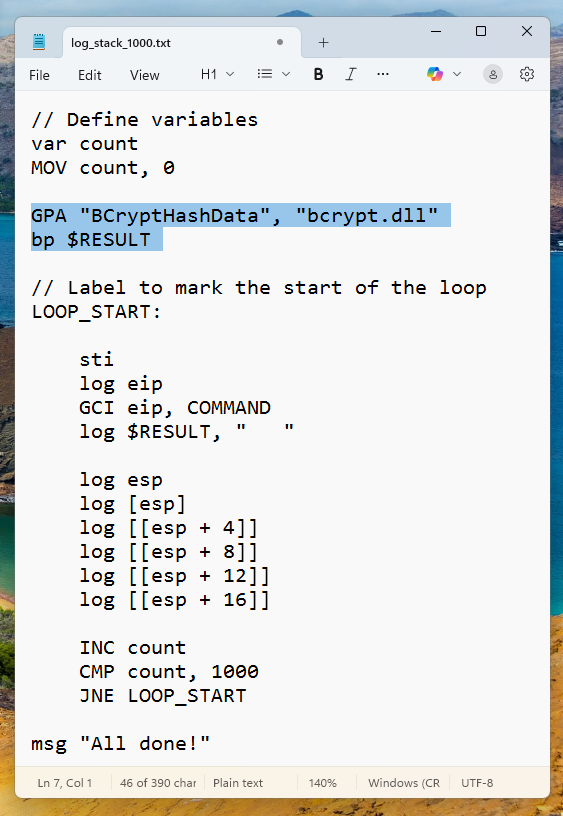
Save the script shown above. Close OllyDbg.
Launch OllyDbg as Administrator. Load hash1.exe.
From the Plugins menu, run your new script.
In the Command Prompt window that opens, enter a password of "AAAAAAAA", as shown below.
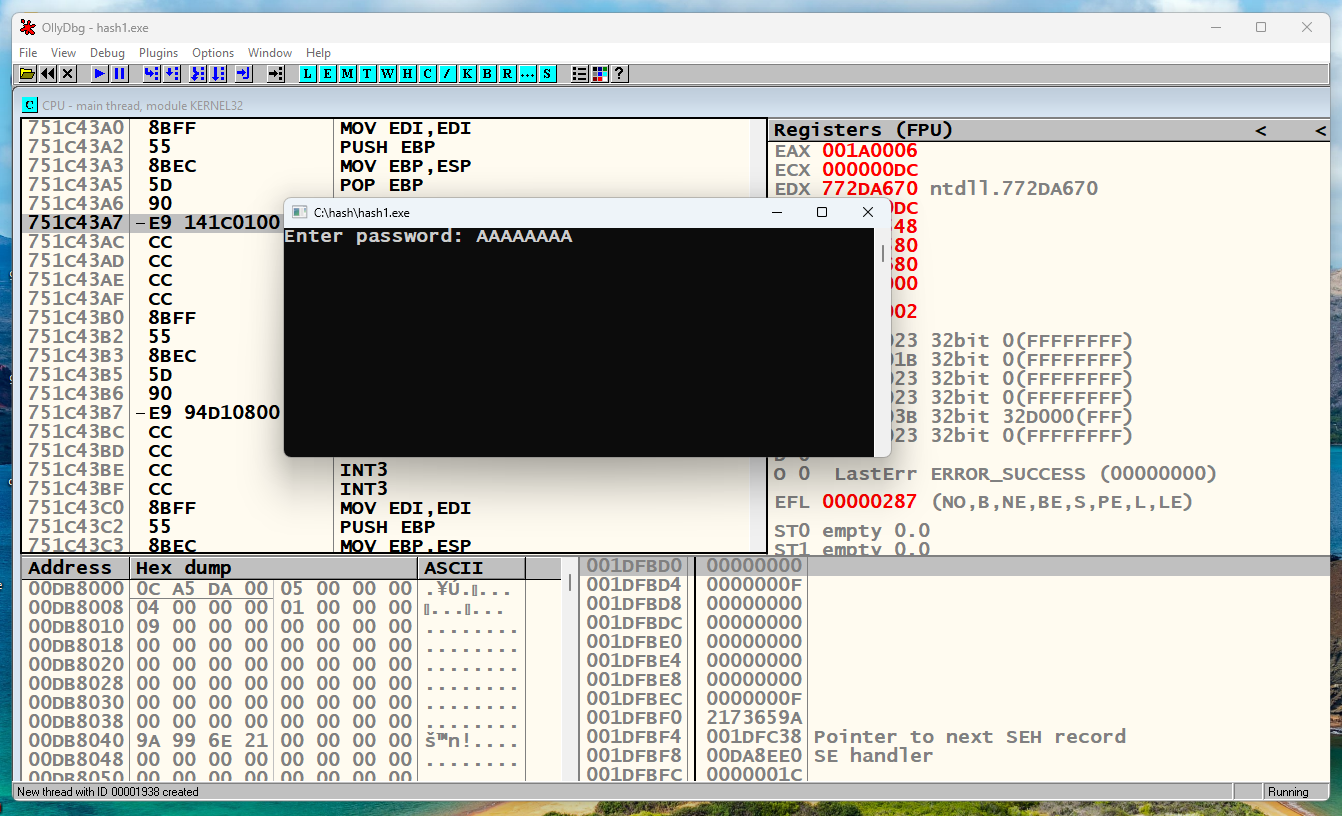
PMA 407.2: Find the Password (10 pts)
In the Script Log Window, search for "AAAA".The flag is covered by a green box in the image below.
Posted 12-24-25