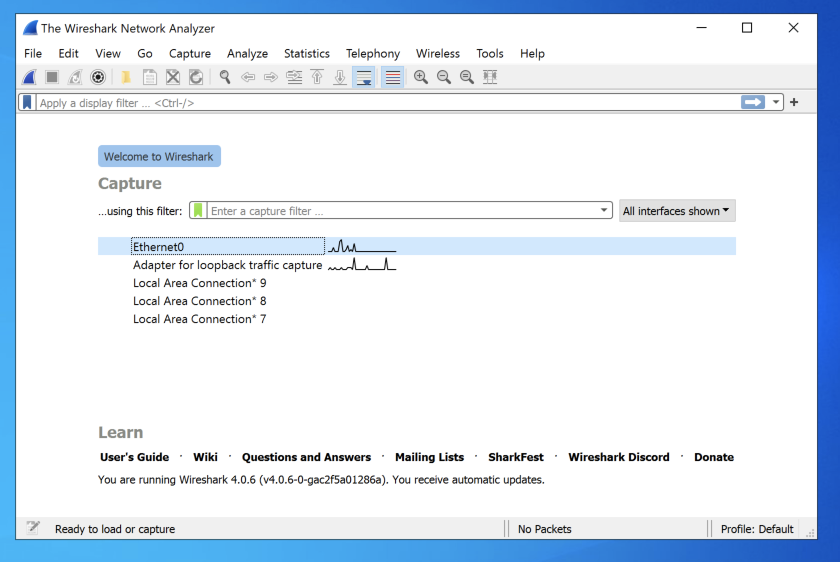
In the main Wireshark window, double-click Ethernet0, or whatever adapter connects to the Internet on your system, as shown below.
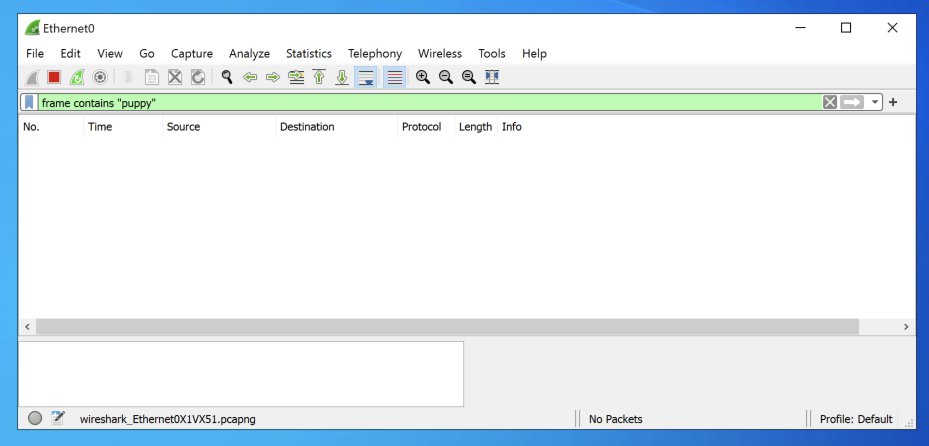
In the the "Capturing from Ethernet0" window, at the top left, in the "Apply a display filter" bar, type this:
frame contains "puppy"
The filter bar turns green, as shown below.
Wireshark is now listening for any packets containing the word "puppy".
http://ad/samsclass.info/cookielogin
Log in with a username and password that contain "puppy", as shown below.
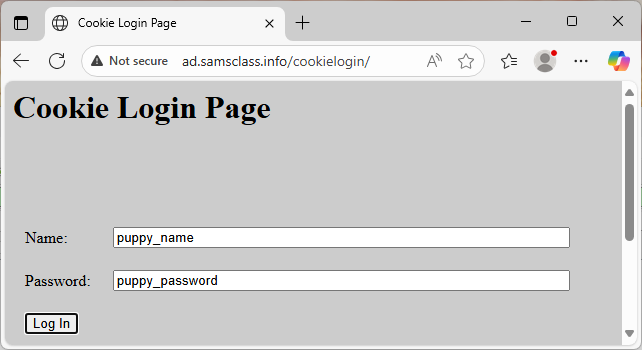
The login is rejected. The browser sent the username and password to the server.
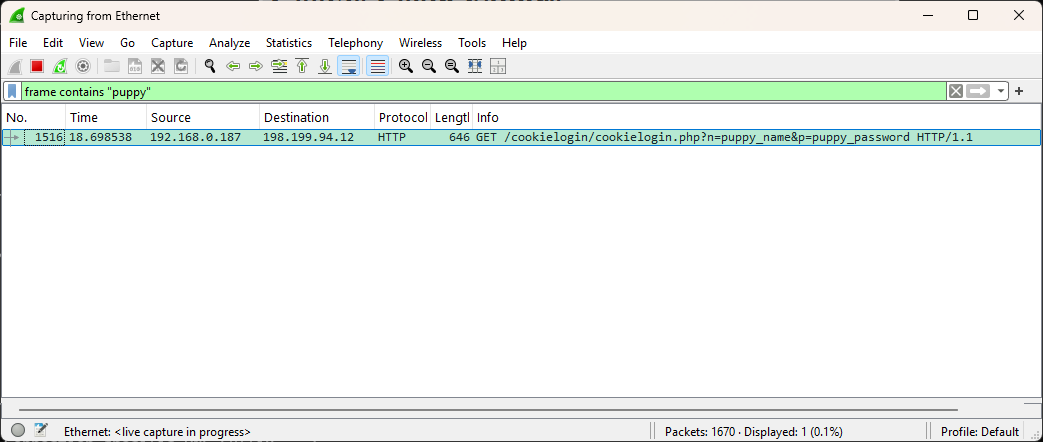
In Wireshark, you see your username and password being sent over the Internet without encryption, as shown below.
Click the Windows button. Download and install the software.
In the lower right of your Windows desktop, near the clock, there are several icons.
Click the WARP icon, outlined in red in the image below.
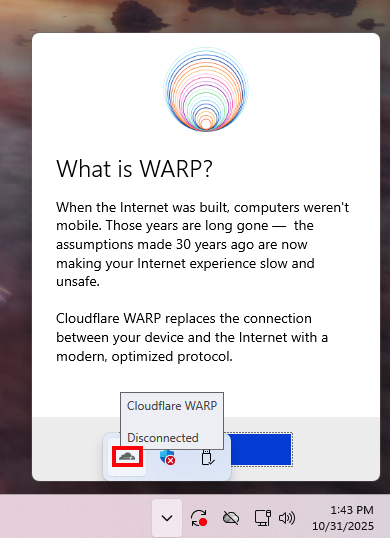
In the "What is WARP?" box, click Next.
In the "Our Commitment to Privacy" box, click Accept.
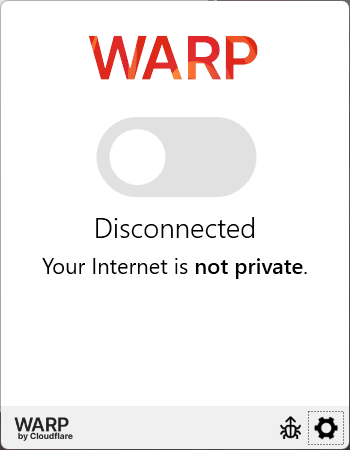
You see a WARP box, as shown below.
Click the big toggle button above the word "Disconnected" to connect WARP.
Note: on my Windows 11 machine, the toggle button is invisible. Just click there anyway.
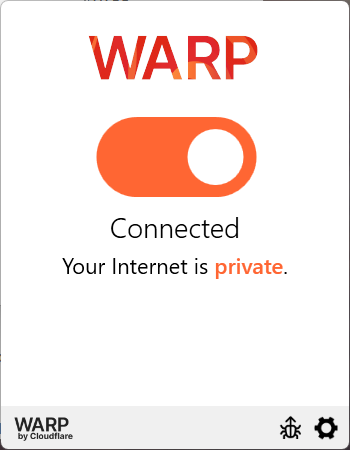
WARP is enabled, as shown below.
Click "Continue without Saving".
In Edge, go to
http://ad/samsclass.info/cookielogin
Log in with a username and password that contain "puppy", as shown below.
Wireshark doesn't see any packets containing "puppy". The VPN is working!
Flag H 242.1: Adapter Name (10 pts)
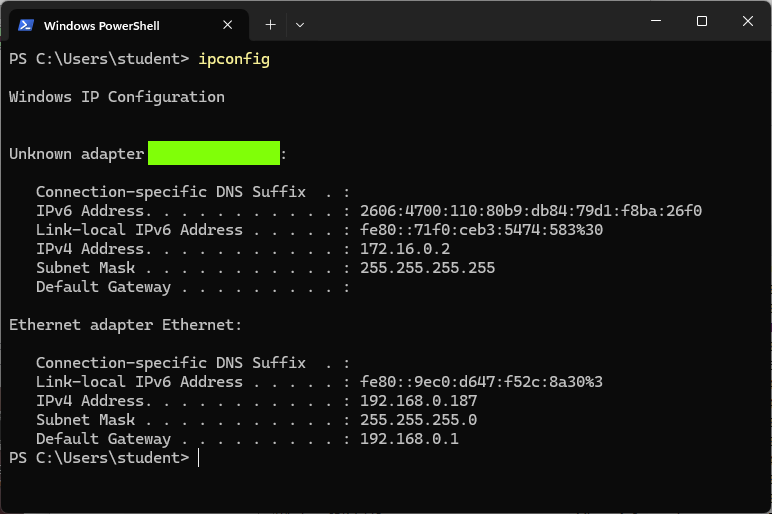
On your Windows machine, click Start and type CMD. Open a Command Prompt and execute this command:The flag is covered by a green rectangle in the image below.
Posted 10-31-25